Table of Contents
Create a new Local Vocabulary
This function is not available at this time, awaiting further implementation of the RDA Registry in RIMMF
In RIMMF, a vocabulary is a container for a list of terms. Once a vocabulary has been linked to an element, all of the terms in the vocabulary are available for use for that element.
Quick Steps
You can create your own list of vocabulary terms for an element, either from within a record or a template, or using the vocabulary editor.
From Within a Record or a Template
- Put your cursor on the 'Element label' that is directly below where you want your new vocabulary to be inserted (go here instead, if the vocabulary is to be inserted at the end of the record/template)
- Press the <Insert> key
- Click on the empty Element Label box, and enter a vocabulary name
- <Tab>
- Indicate “What Kind of data is this?”: Vocabulary
- Indicate the Source of the vocabulary
- Indicate the Kind of vocabulary for the data
- Click <Submit>
From the Vocabulary Editor
- Open the Vocabulary Editor
- Click 'Create vocabulary' (button at bottom left)
- Enter the name for the new vocabulary
- Press <Submit> to use defaults for the remaining values, or click the tabs on the left to set the 'Source' (default='User') and/or 'Type' (default='Open') for the new vocabulary
Once the vocabulary has been created, you may want to
Detailed Steps
From Within a Record or a Template
To add a local vocabulary of your own to a template:
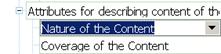 Put your cursor on the vocabulary label that is directly below where you want your new vocabulary to be inserted (go here instead, if the vocabulary is to be inserted at the end of the record/template:

- If your new vocabulary is a parent vocabulary, put your cursor on a parent vocabulary label
- If your new vocabulary is a sub-vocabulary, put your cursor on a sub-vocabulary vocabulary label in the same group
- You can move the vocabulary after you insert it, if you wish
- Press the <Insert> key; a blank box will appear
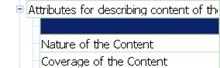

Enter a local vocabulary name–(this only works for templates)
- Click on the empty Element Label box, and enter a vocabulary name

- <Tab>
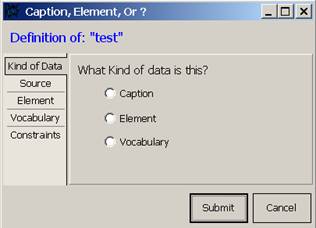 Click the Vocabulary button to indicate “What Kind of data is this?” (use this for an element that has a list of terms for its data; this allows you to set up a list of common terms, so that the user can either choose from the list, or (if it is an open vocabulary) enter a new term)
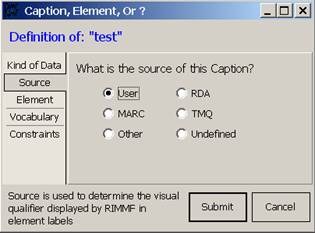 Indicate the Source of the Vocabulary, e.g., “User” (do not use RDA or TMQ as a Source)
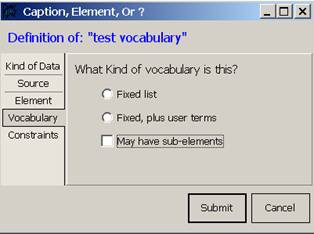 Indicate the Kind of vocabulary for the data:
- Fixed list—the user will only be able to choose from the closed list of terms that you provide
- Fixed, plus user terms—the user will be able to choose from the open list of terms that you provide, or enter a term of their own
- May have sub-elements—either way (fixed or fixed plus) the vocabulary might have sub-elements, that can be used to provide more detailed terms than the general terms provided in the parent vocabulary
- Click <Submit>
- The system will add an appropriate vocabulary symbol for the source of the vocabulary, to the end of the label, e.g., “‡” = MARC


You will be able to change these vocabulary settings later using Edit Vocabularies

In a template: if you would like an added vocabulary to always appear for a particular type of record, then add that vocabulary in a template; the added vocabulary will always appear whenever that template is accessed.
In a record: do not add a vocabulary to a record; if you do, then that new vocabulary will show up as 'undefined' the next time you open the record. Only add new vocabularies to templates, so that the software knows what to do with the data for that vocabulary, the next time you access a record that contains that vocabulary data.
From the Vocabulary Editor
The vocabulary editor is accessed from the main menu under 'Edit'

or in the context menu when an element linked to a vocabulary has been selected

The 'Create vocabulary' button is located at the bottom of the editor

In the pop-up form, enter the name for your vocabulary

Click the 'Source' tab in the left-hand menu to set the source of the vocabulary

Then click the 'Type' tab to define what type of vocabulary this is (open or closed)

Click Submit to save the new vocabulary or Cancel to abandon it.
(For more information on Open and Closed vocabularies, follow this link).
If you save it, you will go back to the vocabulary form, where you should see the values entered above, in addition to another option that you may set here–the display options:

Once the vocabulary has been created, you may want to